
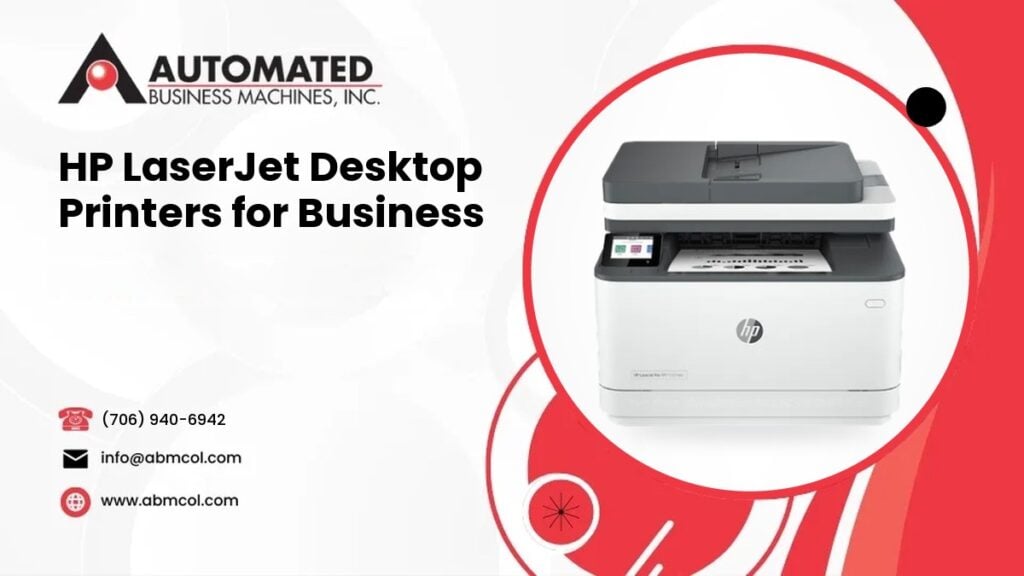
Picking a desktop printer for your office sounds simple until you see how many choices there are. Mono or color? Printer only, or one that also scans and copies? Does it need to print from phones? Does it need to keep private documents safe?
At Automated Business Machines (ABM), we sell, lease and service HP desktop printers for businesses across Georgia. We have done this since 1991. This guide walks you through the main questions to ask, so you can pick an HP LaserJet that fits your office instead of one that is too small, too big or missing a feature you need.
Why Businesses Choose HP LaserJet Desktop Printers
HP LaserJet printers use laser technology and toner. For office work, that matters. Laser printing is known for sharp text, steady output on plain paper and toner that does not smear when it gets a little damp.
Businesses tend to look at LaserJet when they print things like:
- Invoices, purchase orders and contracts
- Forms and reports
- Shipping paperwork
- Customer handouts and simple marketing sheets
A desktop printer is meant for a person, a small team or a front desk. If your whole building shares one machine all day, you may need something larger. We cover that later in this post.
Step 1: Decide Between Mono and Color
This is the first choice, and it shapes everything else.
When mono is enough
A mono printer prints in black and white. If most of your pages are text, such as letters, invoices, work orders and internal reports, mono is usually the practical choice. Mono machines are often simpler, and the toner is usually less costly to replace than color toner.
When color makes sense
Color helps when the page needs to catch the eye or carry meaning. Think of charts, proposals, product sheets, presentations, floor plans or branded forms. If your team keeps sending color work out to be printed, a color LaserJet in the office may save you time and trips.
A simple way to decide
Look at a typical week. How many pages truly need color? If it is only a few, you might use a mono printer for daily work. If color is part of your daily output, a color model will pay off in convenience.
Color printers use several toner cartridges, so supplies are part of the long term cost. We will explain what drives cost below.
Step 2: Single Function or Multifunction
A single function printer prints. That is all. A multifunction printer, often called an MFP, prints, copies and scans. Many also fax.
Choose single function if
- You only print, and scanning is rare
- You want a simpler machine with fewer parts
- Space on the desk is tight
Choose multifunction if
- You scan documents to email or to a shared folder
- You make copies of IDs, receipts or forms
- You want to cut paper files down by going digital
- You would rather have one device than three
For many small offices, a multifunction model ends up being the better value because it replaces a separate scanner and small copier. Look for features like an automatic document feeder if you scan multiple page documents. Without one, you have to place each page on the glass by hand.
Step 3: Estimate Your Monthly Print Volume
Volume is the most overlooked part of printer shopping. Every printer is built for a certain amount of work. Push a small machine far past what it was made for, and you may see more jams, more service calls and a shorter life.
How to estimate volume
- Check your current printer for a page count report, if it has one.
- Add up the pages printed by everyone who will use the new printer.
- Think about busy periods, such as month end or tax season.
- Plan for growth if you expect to add staff.
Then match the printer to your needs. A printer for one or two people has different needs than one shared by a whole department. When you look at specs, find the recommended monthly volume for that model and stay inside it, with some room to spare.
When a desktop printer is not enough
If a lot of people share the machine or you print large jobs, a copier or a larger multifunction may be the better tool. For those jobs we offer copiers and MFPs from Sharp, Toshiba, Xerox and Lexmark. We can help you compare both types so you do not overbuy or underbuy.
Step 4: Look at Duplex Printing
Duplex means printing on both sides of the page. It sounds minor, but it affects paper use, filing space and how professional your documents look.
If you print multipage contracts, reports or manuals, automatic duplex printing saves paper and stops you from flipping pages by hand. Some machines also scan both sides of a page in one pass. If you plan to scan a lot of double sided paperwork, ask about that feature specifically.
Step 5: Think About Network and Mobile Printing
Most offices share a printer. That means the printer has to connect well with your network and your people.
Network connections
Look at the ways a printer can connect:
- Wired network, which is usually steady and reliable for shared printers
- Wireless network, which gives you more freedom on where to place it
- USB, for a single computer connection
If several people print at once, a wired connection is often the safer choice. Wireless is handy when the printer sits far from the nearest network port.
Mobile printing
Many HP business printers support printing from phones and tablets. This is useful for staff who are out and about, and for visitors who need to print a boarding pass or a form. Check that the model you want supports the kind of mobile printing your team will use, and that your IT setup allows it.
If you are not sure how a new printer will fit your network, our managed IT services team can help, but you can also simply ask us when you shop. A printer that is set up well saves everyone frustration later.
Step 6: Don’t Forget Security
Printers are small computers on your network. They store information and send it around. For offices that handle customer records, health details, payroll or legal papers, security should be on your checklist.
Ask about features such as:
- PIN or password release, so pages print only when the owner is at the machine
- User sign in, so only approved people can use the printer
- Secure network settings and the ability to turn off ports you do not use
- Firmware updates, so security fixes can be installed
- Protection for any data stored on the device
Not every model has the same set of features, so compare them for the exact model you are considering. Also, someone needs to own the job of keeping the printer updated. If nobody does, even a secure printer can fall behind.
What Drives the Cost of a Business Printer
We do not publish prices, because the right answer depends on what you need. We are happy to quote your exact setup. It helps to know what moves the total up or down:
- Color or mono. Color models usually involve more supplies.
- Single function or multifunction. More functions mean more parts.
- Speed and monthly volume. Machines made for heavier work cost more to build and run.
- Toner and supplies. Ask how many pages a cartridge is rated to print and how often you will replace it.
- Paper handling. Extra trays and duplex features add to the total.
- Buy, lease or rent. How you pay changes how the cost is spread out.
- Service and support. Who fixes the printer when something goes wrong matters over several years.
If you want to spread the cost, ask about copier and printer leasing. If you only need a printer for a short project, ask us about rentals.
Support After the Sale
A printer is not a one time purchase. Toner runs out, rollers wear and software needs updates. Our technicians service the HP printers we sell, and they have an average response time of 4 hours. We also offer managed print services if you want help watching supplies and service across your whole office.
Look at the Whole Range Before You Decide
Once you know your answers on color, function, volume and security, it is much easier to narrow the list. You can browse all equipment models to see what is available, then talk with us about which one fits.
We also carry desktop printers from Brother, so we can compare options with you. Our job is to match the machine to your office, not to push the biggest one.
Quick Checklist Before You Buy
- Do we need color, or is black and white enough?
- Do we need to scan and copy, or only print?
- How many pages do we print in a normal month?
- Do we print double sided often?
- How will the printer connect to our network?
- Do we need mobile printing?
- What security features do our documents require?
- Who will service the printer if it breaks?
If you can answer those eight questions, you are ready to choose with confidence.
Talk With a Local Team
Automated Business Machines is locally owned, with our headquarters in Columbus, Georgia and a branch office in Leesburg. We serve businesses across Georgia, including Columbus, metro Atlanta, Macon and Albany, plus Phenix City, Auburn and Opelika in east Alabama. Call us at (706) 940-6942 and tell us how your office prints. We will help you find the right HP LaserJet desktop printer and give you a quote that fits.
Frequently Asked Questions
Is an HP LaserJet a good choice for a small business?
Yes, for many small offices. LaserJet printers are known for crisp text on plain paper, which suits invoices, forms and reports. The right model depends on your monthly volume, whether you need color, and whether you want scanning and copying too. We can help you match a model to your office.
Should my office buy a mono or a color LaserJet?
Choose mono if most of your pages are text, such as invoices and internal reports. Choose color if you often print charts, proposals or branded sheets. Color machines use more toner cartridges, so think about ongoing supply needs as well as the first purchase. Look at a typical week of printing before you decide.
What if our office prints too much for a desktop printer?
If many people share one machine or you run large jobs, a copier or larger multifunction may fit better. We offer copiers and MFPs from Sharp, Toshiba, Xerox and Lexmark. Tell us your monthly page count and we will help you compare a desktop printer with a larger machine.
Can your technicians repair an HP printer we bought somewhere else?
Call us with the make and model and we will tell you how we can help. Our average response time is 4 hours. Call (706) 940-6942 or use our service request page, and tell us the model and what is going wrong so we can prepare.