
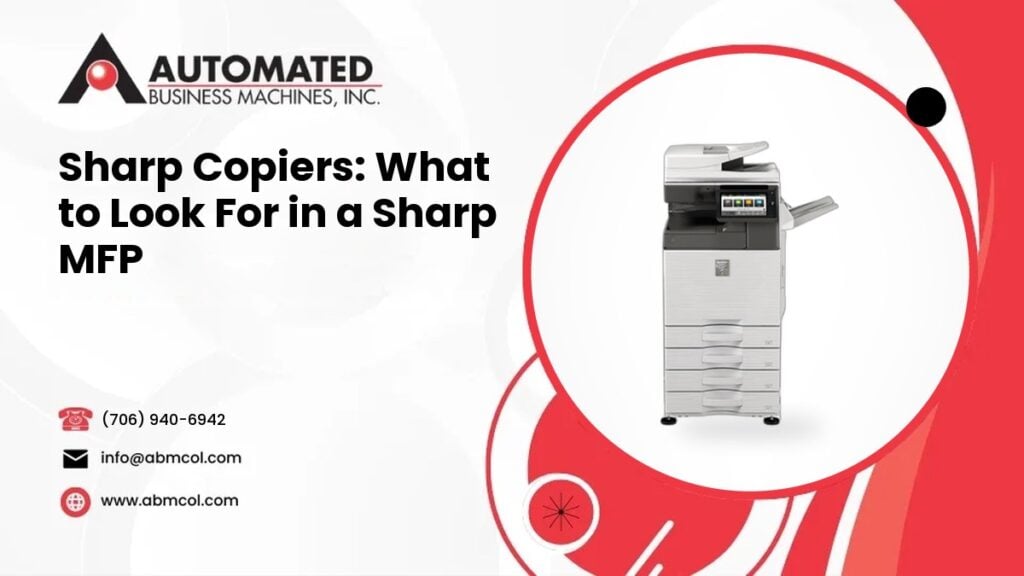
A Sharp multifunction printer, often called an MFP, does much more than make copies. It prints, scans, copies and can send documents to email or shared folders. For many offices it is one of the busiest machines in the building.
That is why picking the right one matters. A machine that is too small will jam, slow down and frustrate your staff. A machine that is too big costs more to run than it should and takes up space you could use for something else.
At Automated Business Machines, we sell, lease, rent and service Sharp equipment for businesses across Georgia and East Alabama. This guide walks through what we ask our customers, so you can think through the same questions before you shop.
Start With How Your Office Really Prints
Before you look at a single machine, take a few minutes to think about your daily routine. Who prints? What do they print? Do people mostly make quick copies, or do they run large jobs like reports, handouts and packets?
Write down a short list. It will make every choice below easier.
- How many people share the machine?
- What kinds of documents do you print and scan most often?
- Do you print in color for clients, or mostly black and white for internal use?
- Do you need to staple, fold or punch finished documents?
- Does anyone print from a phone, a tablet or a laptop away from the office?
Your answers point to the features that matter. They also help you skip the ones you will never use.
Speed and Monthly Volume
Speed is how fast a machine prints and copies. Volume is how much your office puts through it in a month. These two ideas work together.
A small team that prints a little each day does not need a production level machine. A busy office with many users, or a department that prints large jobs, needs a model built for heavier use. Sharp offers MFPs across a wide range, from compact models for small workgroups to larger floor standing models for busy offices.
Here is a simple way to think about it. Look at your recent print and copy counts if you have them. If you do not, we can help you estimate. Choosing a machine rated for the volume you actually run helps it last longer and cause fewer headaches. It is usually smart to leave some room for growth, too.
Color or Black and White
Color adds cost to the machine and to each page, so it is worth deciding on purpose. If your staff mostly prints invoices, forms and internal memos, a black and white MFP may be all you need.
If you print proposals, marketing pieces, charts or anything a customer will see, color is worth a serious look. Some offices keep one color MFP in a central spot and use lower cost black and white machines elsewhere. That mix can keep your spending in check while still giving people color when they need it.
Scanning and Document Features
Scanning is where a good MFP can really save your team time. Many offices still print documents just to scan them again. A well set up Sharp MFP can cut out those extra steps.
Features to look at include:
- Scan to email. Send a scanned document straight to a coworker or client.
- Scan to folder. Save files to a shared network folder so the right people can find them.
- Scan to cloud storage. Send documents to the online storage your office already uses.
- Searchable PDFs. Some setups can turn a scanned page into a file you can search by word.
- Automatic document feeder. This loads a stack of pages so you do not have to place each one on the glass.
- Two sided scanning. A feeder that scans both sides in one pass saves effort on long documents.
If your office handles lots of paperwork, such as patient forms, contracts or job files, ask about these features first. They can change how your whole team handles paper.
Paper Handling
Paper handling is easy to overlook, but it affects your day more than almost anything else. Think about how often someone has to stop and refill the trays.
Ask yourself:
- Do you print on more than one paper size, such as letter, legal and tabloid?
- Do you use letterhead, labels, envelopes or heavier stock?
- Would extra trays or a large capacity tray keep the machine running longer between refills?
- Do you want two sided printing as a default to cut paper use?
Many Sharp MFPs let you add trays, a larger paper supply or a stand to fit your space. A bypass tray is handy for odd jobs like envelopes or special paper. Choose paper capacity that matches your busiest days, not just an average day.
Finishing Options
Finishing means what the machine does to your pages after they print. For some offices this is a nice extra. For others it saves hours of hand work.
Common options include:
- Stapling. Useful for meeting packets, reports and training handouts.
- Hole punching. Handy if your team uses binders.
- Booklet making. Folds and staples pages into a simple booklet.
- Offset stacking. Separates jobs in the output tray so they do not get mixed up.
If your staff staples by hand or sorts piles of paper every week, a finisher may pay off in saved effort. If you only print the occasional page, you can probably skip it. Finishers add to the size and cost of a machine, so only choose what you will use.
Security Features
Your copier handles real business information. It can hold scanned documents, and it sends files across your network. Security should be part of your decision, not an afterthought.
Look for features such as:
- User login. Staff sign in with a code or a card before they can print, copy or scan.
- Secure print release. A job waits until the person who sent it is standing at the machine.
- Data protection. Options that help protect or clear stored data on the machine.
- Network settings. Controls that limit who and what can reach the device.
Print management software can add another layer. We offer PaperCut print management, which helps you see who is printing, set rules and keep print activity under control. It works well alongside the security tools on a Sharp MFP.
If you also want help with the network side, our managed IT services team can look at how your devices connect to the rest of your systems. We mention that only because a copier is a network device, and it should be set up with the same care as a computer.
Cloud and Mobile Printing
Work does not always happen at a desk anymore. People print from phones, tablets and laptops, and many store files online. Your MFP should keep up.
Ask about:
- Printing from a phone or tablet over your office network.
- Connecting to the cloud storage your team already uses.
- A color touchscreen that is simple to use, so new staff do not need training to make a copy.
- Easy setup for new computers, so IT does not lose time installing drivers one by one.
Keep in mind that every office is set up differently. The right features depend on the systems you use. When we recommend a machine, we look at your computers, your network and your software so the MFP fits in smoothly.
Buy, Lease or Rent
Once you know what you need, you have to decide how to get it. Each path suits a different situation.
Buying makes sense if you want to own the machine and plan to keep it for a long time.
Leasing spreads the cost of the equipment over a set term and often makes it easier to plan your budget. It can also make it simpler to upgrade later. If you searched for a Sharp copier lease, our copier and printer leasing page explains how it works.
Renting works for short projects, events or temporary needs.
We do not publish prices, because cost depends on the model, the features, your volume and the terms. We give you a quote based on your actual needs.
Think About Service and Supplies
A copier is only as good as the support behind it. Ask who will install it, train your staff and fix it when something goes wrong. Ask how supplies like toner will reach you.
Our technicians service the brands we carry, including Sharp, Toshiba, Xerox and Lexmark copiers. We are locally owned, with our headquarters in Columbus and a branch office in Leesburg near Albany. We also serve businesses across Georgia, including metro Atlanta and Macon, plus Phenix City, Auburn and Opelika in east Alabama.
A Simple Checklist Before You Choose
Bring these points with you when you talk to any dealer:
- Your approximate monthly print and copy volume
- The number of people who will use the machine
- Whether you need color, black and white, or both
- The paper sizes and types you use
- The scanning and finishing features your team will actually use
- Your security needs and any rules your industry requires
- How people print, from desks, phones or the cloud
- Whether you want to buy, lease or rent
Take the Next Step
You can browse the machines we offer in our equipment catalog to get a feel for the options. Then talk to a person who can match a Sharp MFP to your office.
Call Automated Business Machines at (706) 940-6942 and tell us how your team prints. We will help you choose the right Sharp copier and give you a quote that fits your needs.
Frequently Asked Questions
How do I choose the right size Sharp copier for my office?
Start with how many people share the machine and how much your office prints and copies each month. Then consider paper sizes, scanning needs and finishing. Choose a model rated for your real volume with some room to grow. We can review your print counts and recommend a fit.
Can I lease a Sharp copier instead of buying one?
Yes. Leasing spreads the cost of the equipment over a set term and can make budgeting and future upgrades simpler. The terms depend on the model, features and your needs. We do not publish prices, but we are happy to prepare a quote for the Sharp MFP you want.
Do I need a color Sharp MFP?
It depends on what you print. If you mostly produce forms, invoices and internal documents, black and white may be enough. If you print proposals, marketing pieces or client materials, color is worth considering. Some offices use one color machine for shared needs and black and white machines elsewhere.
Can ABM service a Sharp copier we did not buy from you?
Call us with the make and model and we will tell you how we can help. If your Sharp copier needs attention, you can request service through our website or call us, and we will work with you on the next steps.