
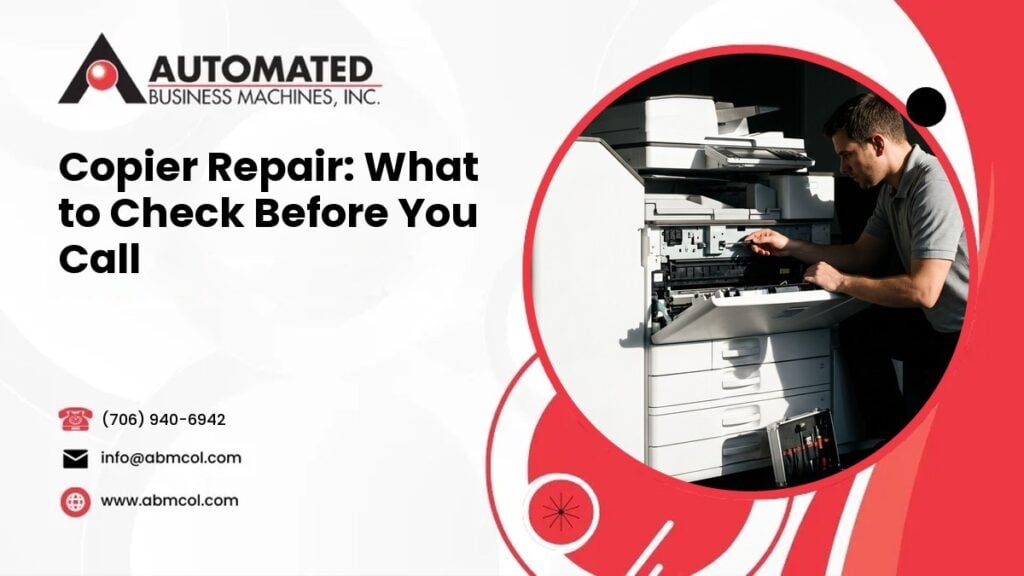
When the copier stops working in the middle of a busy day, the whole office feels it. Before you search for “copier repair near me,” a few simple checks can sometimes get you printing again. If they do not fix the problem, you will at least know what to tell the technician.
At Automated Business Machines, we have served Georgia businesses since 1991. We sell, lease, rent and service copiers, multifunction printers and printers, so we see the same small problems come up again and again. Many have easy fixes. Some do not, and that is when you should call us.
This guide covers what to check first, when to stop, and what to have ready when you call.
Start With Power and Connection
It sounds too simple, but power and connection problems are behind a lot of service calls.
Check the Power
Start at the wall and work your way back to the machine:
- Make sure the power cord is pushed in firmly at the outlet and at the back of the copier.
- If the copier is plugged into a power strip, check that the strip is switched on.
- Try a different outlet if you can.
- Look for both a main power switch and a front power button. Many machines have both, and each needs to be on.
If the screen is dark or frozen, restart the machine. Use the power button to turn it off, let it shut down fully, then turn it back on. Give it plenty of time to warm up before you decide it is still broken.
Check the Network or Cable
If the copier is on but nothing prints from your computers, look at the connection:
- Make sure the network or USB cable is snug at both ends.
- Look at the small lights near the network port. If they are off, the cable or the network may be the problem.
- If the machine connects wirelessly, check its screen to see whether it still shows a connection.
- Print a status or configuration page from the machine’s own menu.
That last step is a useful test. If the machine can print its own page, the copier itself is working. The problem is probably somewhere between the machine and your computer.
Check the Paper and the Paper Path
Paper jams are the most common copier problem. They are also the one most offices can handle on their own, as long as they go slowly.
Clear a Jam Carefully
Follow these steps:
- Read the screen. Many machines show where the jam is.
- Open only the doors and trays the screen points to.
- Pull the jammed paper out gently, in the direction the paper normally travels. This helps keep it from tearing.
- Check for small torn pieces left behind. A tiny scrap can cause the next jam.
- Close every door and tray firmly. A door that is not fully shut can make the machine keep showing a jam.
Some parts inside a copier get very hot, especially near the fuser. Do not force levers or reach into areas that are not marked for user access. If you smell burning or see smoke, turn the machine off and unplug it.
Check the Paper Itself
If jams keep coming back, look at the paper before you blame the machine:
- Paper that is damp, curled or wrinkled can jam easily. Try a fresh, dry ream.
- Make sure the paper size and type set on the screen match what is in the tray.
- Do not overfill the tray, and make sure the paper guides sit snug against the stack.
- Do not mix different paper types or sizes in the same tray.
- Fan the stack before loading it so sheets do not stick together.
If the same jam keeps happening in the same spot after all of this, a worn roller or another part may need service. That is a good time to call.
Read the Error Code and the Screen
When your copier shows an error, do not just clear it and move on. Write down the exact message and any code number. A quick photo with your phone works too.
Some messages are simple, such as out of paper, door open or toner low. Others are service codes that point to a part inside the machine. A code that comes back after a restart is the machine telling you something needs attention.
Please do not keep restarting a machine that shows the same service code over and over. The code helps our technician come prepared, and repeated restarts will not repair a failed part.
Look at Toner and Supplies
Toner problems can look like bigger problems, so check these basics:
- Read the toner message. If a cartridge is empty, replace it by following the instructions that came with it.
- Check for a “waste toner” or “container full” message. Some machines need that container replaced separately.
- Make sure you are using the right cartridge for your model. Every brand and model uses specific supplies.
- If copies come out faded, streaky or with lines, a low cartridge may be the cause. Try a fresh one if you have it.
If streaks, spots or smears stay after you install new toner, the problem may be the drum, the fuser or another part. That is a job for a technician. If you need cartridges, you can order supplies from us.
Check the Print Queue and the Computer
Sometimes the copier is fine and the problem is on the computer side.
- Open the print queue on your computer and look for a stuck job. One bad job can block everything behind it. Cancel it and try again.
- Make sure the right printer is selected. People sometimes print to an old or different device by mistake.
- Check whether the printer shows as “offline.” If it does, set it back to online.
- Try printing from a second computer. If that works, the first computer’s settings or driver may be the issue. If it does not, the machine or the network is more likely the cause.
If several computers cannot print and the machine passed the status page test, your network may need a look. If you have an IT provider, let them know what you found.
When It Is Time to Call a Technician
Some problems are not worth more guessing. Call a technician if you see any of these:
- A service code that returns after you restart the machine.
- Jams that keep happening in the same place after you have cleared the path and checked the paper.
- Grinding, squealing or banging sounds.
- A burning smell, smoke or visible damage. Turn the machine off and unplug it first.
- Lines, spots or smears that remain after a new cartridge.
- Toner leaking inside or outside the machine.
- A machine that will not turn on even though the power is good.
- A broken door, tray, handle or other part.
Please do not open panels that are not meant for users. You could cause more damage, and some parts inside are hot or carry electricity.
What to Have Ready When You Call
A little information up front makes the call go more smoothly. Try to have these items:
- Make and model. This is usually on the front of the machine.
- Machine ID or serial number. It is often on a label on the back, on the side or inside a door.
- Meter reading. This is the total page count. You can usually find it in the counter or status menu on the screen.
- The exact error code or message. This is why we asked you to write it down.
- What happened right before the problem. Did it jam, make a noise, lose power or stop printing after a software change?
- What you already tried. Tell us about the restart, the jam clearing and the new toner.
- A contact person and the machine’s location. This is helpful in offices with more than one floor or building.
The meter reading also matters if your agreement is based on pages printed. It helps us keep your records correct.
When you are ready, you can request service on our website. You can also call us.
Service for the Machines We Sell, Lease and Rent
We sell, lease and rent copiers and multifunction printers from Sharp, Toshiba, Xerox and Lexmark, desktop printers from Brother and HP, HP large-format printers, and Zebra label printers, and we service those machines too. If you have an older machine or one that came from somewhere else, call us with the make and model and we will tell you how we can help.
If repairs on an aging machine start to add up, we are happy to talk through your options. That might mean repairing it, or it might mean looking at a newer machine. We will give you a straight answer.
Serving Georgia and East Alabama
Our headquarters is at 1730 Boxwood Place in Columbus, Georgia, and we have a branch office in Leesburg, Georgia, near Albany. We serve businesses across Georgia, including Columbus, metro Atlanta, Macon and Albany, plus Phenix City, Auburn and Opelika in east Alabama. If you are looking for copier repair near you, we would be glad to help.
Need a Hand With Your Copier?
If you have tried these checks and your copier still is not working, Automated Business Machines is ready to help. Call us at (706) 940-6942, and have your model, serial number, meter reading and error code handy.
Frequently Asked Questions
Can you repair a copier that I did not buy from you?
We sell, lease and rent copiers and printers from Sharp, Toshiba, Xerox, Lexmark, Brother and HP, and we service those machines. If you are not sure we can help with your machine, call Automated Business Machines and tell us the make and model.
What information should I have ready when I call for copier repair?
Have the make and model, the machine ID or serial number, the meter reading (total page count) and the exact error code or message. It also helps to know what happened right before the problem and what you already tried, such as restarting the machine or clearing a jam.
Why does my copier keep jamming?
Common causes include damp or curled paper, the wrong paper type setting, an overfilled tray, and small torn pieces left in the paper path. If you have cleared the path and checked the paper but jams keep happening in the same spot, a worn roller or other part may need a technician.
Do you offer copier repair near me if I am outside Columbus?
We have offices in Columbus and Leesburg, Georgia, and we serve businesses across Georgia, including metro Atlanta and Macon, plus Phenix City, Auburn and Opelika in east Alabama. If you are not sure whether your location is covered, call Automated Business Machines at (706) 940-6942 or use our request service page, and we will go over it with you.